The #1 App for North American Truckers — Trusted by 1M+ drivers for parking, stops, fuel & weigh stations.
Learn More


Our experts will contact you to discuss your needs
If you see an incoming call, that’s us: (***) *** -4060
Our agent will confirm a few quick details so we can match you to the right fleet navigation plan. Call missed? No problem, we’ll get in touch with you soon.
Step 1 – Pick Your Product
Step 2 – Get Started
The #1 App for North American Truckers — Trusted by 1M+ drivers for parking, stops, fuel & weigh stations.
Learn More
Optimize every mile with fleet navigation, dispatch, routing, and compliance.
Learn MoreStart Enterprise Trial
Find and book high-paying loads from your phone or desktop with our powerful loadboard.
Search OnlineTrucker Path for Fleets + McLeod
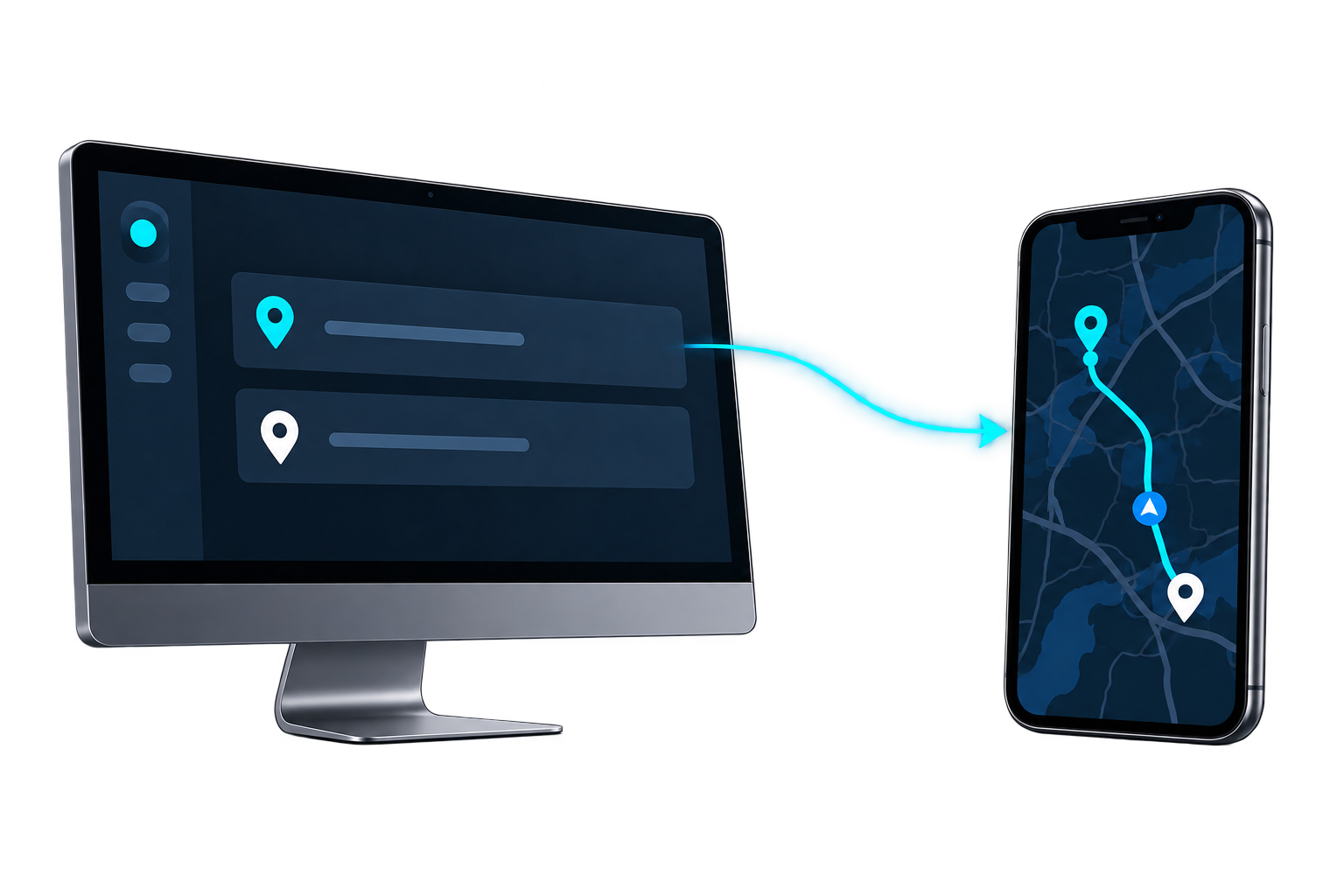
Your dispatcher builds the stop in McLeod. Driver Sidekick sends the stop details to Trucker Path, and the driver taps once to start navigating.

Alongside McLeod
McLeod remains the system of record for the load, the customer and the billing. Trucker Path takes the stop and routes the truck to it.
Customer, address and appointment window arrive from McLeod. Your driver stops keying navigation details in by hand.
Truck size and weight dimensions are applied. The route avoids low bridges, weight-restricted roadways and tight turns.
Fleet managers send pre-configured custom routes directly to drivers rather than describing them over the phone.
How it connects
Your dispatcher enters the customer, the address and the appointment window in McLeod, the same way as today.
McLeod's Driver Sidekick mobile app sends the stop details directly to Trucker Path. Your dispatcher can send a pre-configured custom route the same way.
The driver moves from the McLeod TMS to navigation in the Trucker Path app with a single tap, then drives a route built for the truck's size and weight.
Reporting
Related pages
 SamsaraDirect
Product names and logos are trademarks of their respective owners, used here to describe compatibility.
FAQ
No. McLeod stays the system of record for the load, the customer and the billing. The stop is built in McLeod and Trucker Path routes the driver to it.
Through McLeod's Driver Sidekick mobile app, which sends the stop details directly to Trucker Path. The driver moves from McLeod to navigation in the Trucker Path app with a single tap.
Yes. Fleet managers can send pre-configured custom routes directly to drivers in the Trucker Path app.
Drivers use the Trucker Path app they already know. The stop arrives in the app they open for parking and fuel prices.
Yes. Truck size and weight dimensions are applied. The route avoids low bridges, weight-restricted roadways and tight turns.
Not through this connection. Those figures come from the Trucker Path for Fleets API: loaded miles, empty miles, on-time trips, and actual arrival, actual departure and dwell time for every stop.
At the McLeod Software UC2024 User Conference.
Still have questions?navpro@truckerpath.com
McLeod stays
Start a 7-day free trial, set your truck profile, and send one McLeod stop to a driver's phone.
Start Free Trial